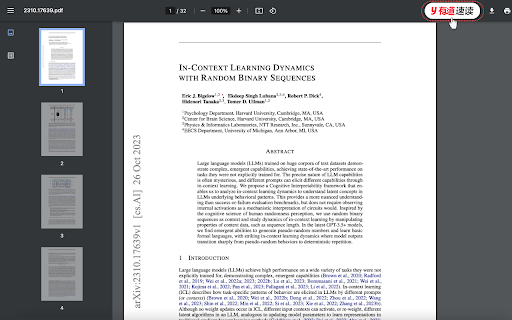
Easeus Chatpdf





EaseMate AI is a next-generation, all-in-one platform engineered to redefine how we learn, work, and create. By transforming advanced artificial intelligence into a practical and user-friendly experience, the platform strips away the friction and complexity often found when juggling multiple AI models. Key Highlights Unified Interface: Access the world’s most powerful models—including GPT, Gemini, Claude, and DeepSeek—from a single dashboard. Seamless Workflow: Eliminate the need to switch between different platforms or manage multiple subscriptions. Core Mission: To democratize AI, making it accessible enough for anyone to tackle complex tasks with professional-grade efficiency.
all-in-one platform for productivity and creativity. From writing and research to AI image and video generation, it helps you work faster, learn smarter, and create stunning visuals with ease.
- Quickly understand the main ideas of academic papers
- Summarize commercial or medical PDF files
- Extract text from image-based PDF documents
- 1. Access and Sign Up Visit the Site: Go to easemate.ai. Log In/Sign Up: Click the "Log In" or "Sign Up" button. Creating an account typically grants you 30 free credits and daily check-in rewards. 2. Choose Your Tool Select a category from the top navigation or homepage based on your needs: AI Chat: For general questions
- coding
- or writing (includes models like DeepSeek
- GPT-5
- and Gemini). AI Video: To create videos from text or images. AI Photo: For image generation
- background removal
- or face swapping. ChatPDF / Study: To upload and analyze documents or solve math problems. 3. Provide Input For Chat: Type your prompt into the message box. You can often switch between different AI models (e.g.
- switching from GPT to Claude) within the same interface. For Images/Videos: Upload a reference file (JPG/PNG) or type a descriptive text prompt. For Documents: Drag and drop your PDF
- Word
- or PPT file into the "ChatPDF" tool. 4. Configure Settings Before generating
- adjust the specific parameters for your project: Models: Select specific engines (e.g.
- Veo 3 for video or Nano Banana for 3D styles). Aspect Ratio: Choose 16:9 (widescreen)

Tenorshare AI: AI tools for humanizing text, summarizing PDFs, writing, and creating slides.


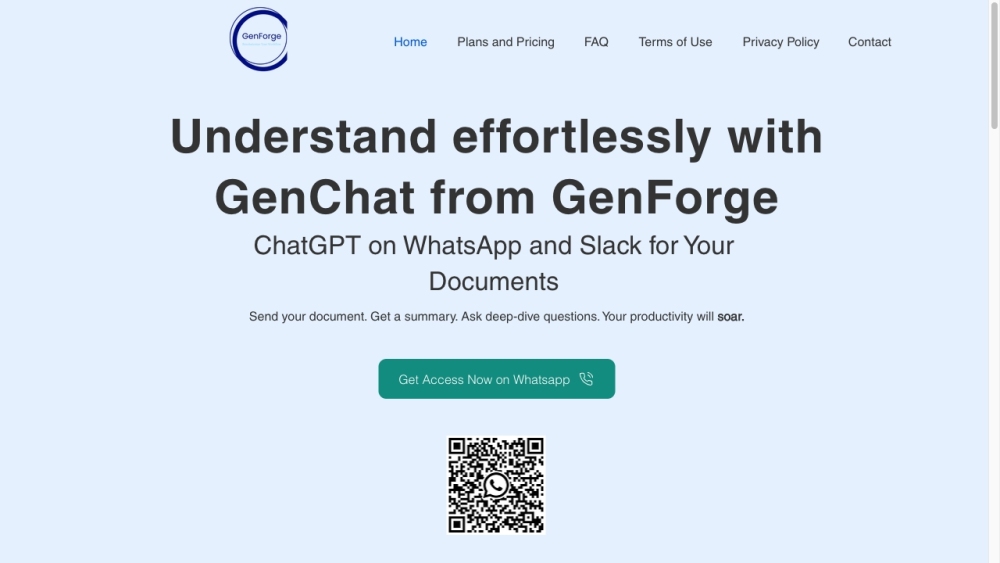
AI tool for document summarization, Q&A, and image generation.

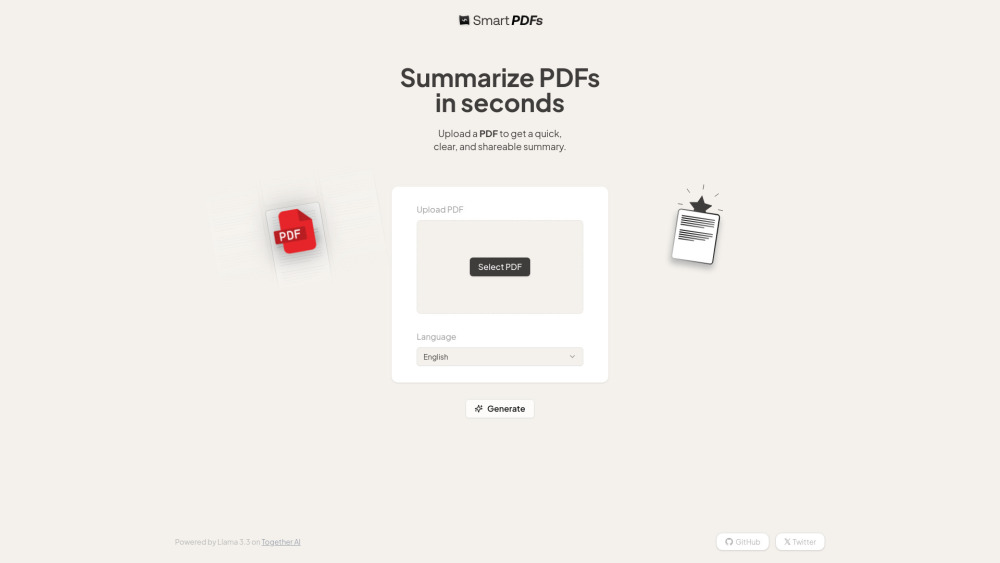
AI-powered PDF summarization tool for quick and shareable summaries.

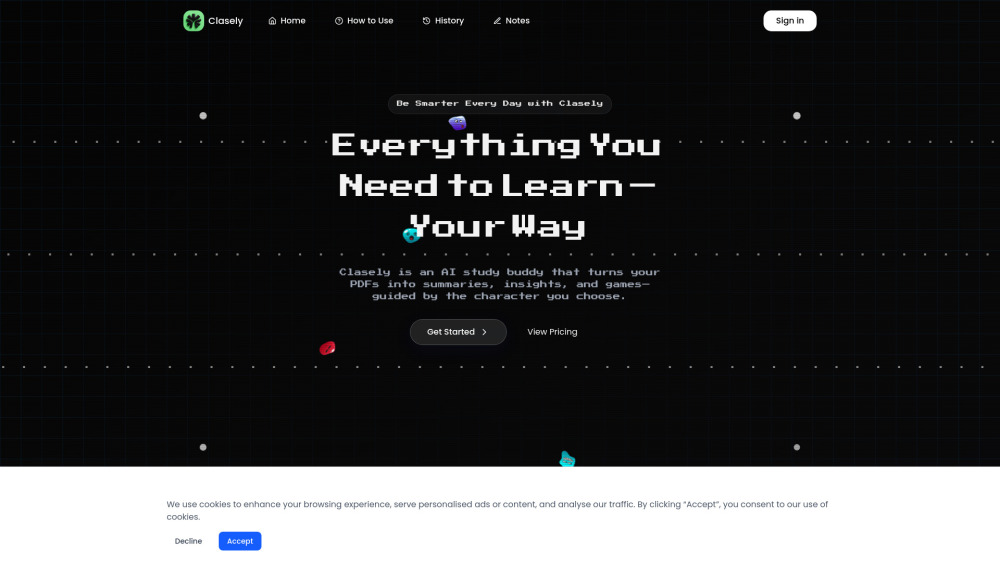
AI study buddy turning PDFs into interactive, character-guided learning experiences.

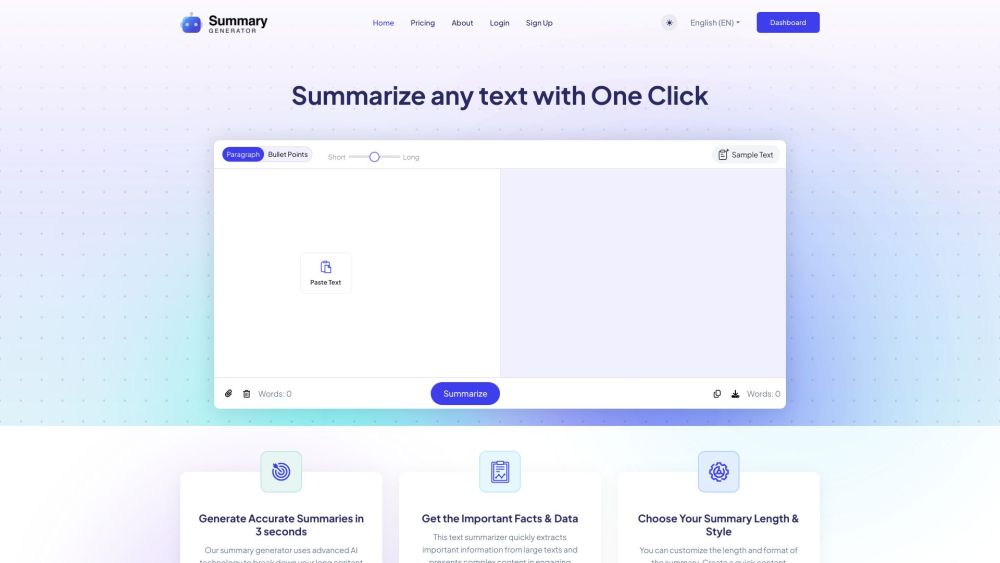
Free AI-powered text summarizer for quick and accurate summaries in multiple languages.

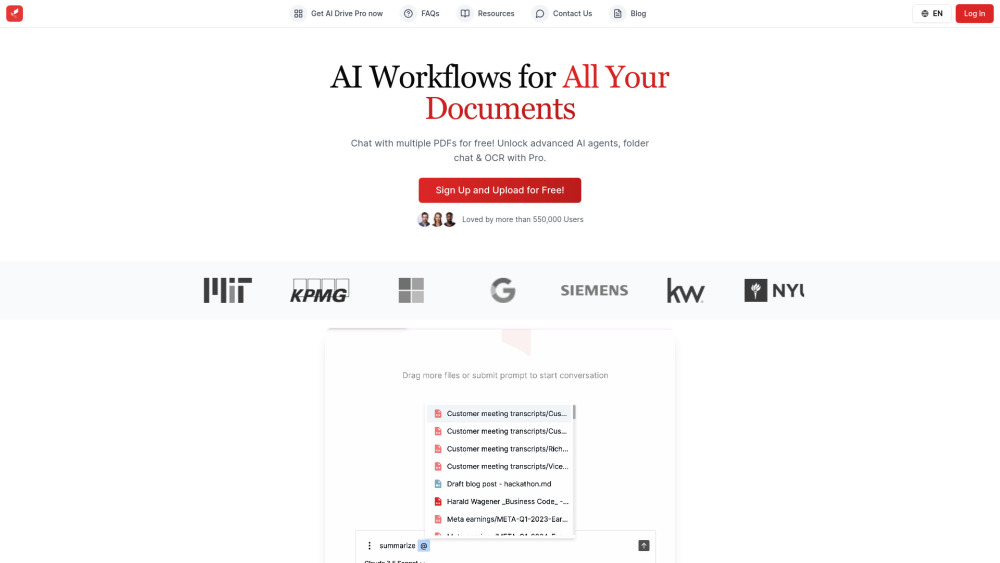
AI-powered cloud storage for summarizing, chatting with, and organizing files using advanced AI models.

Free AI tool for instant PDF summarization and chatting with document content.

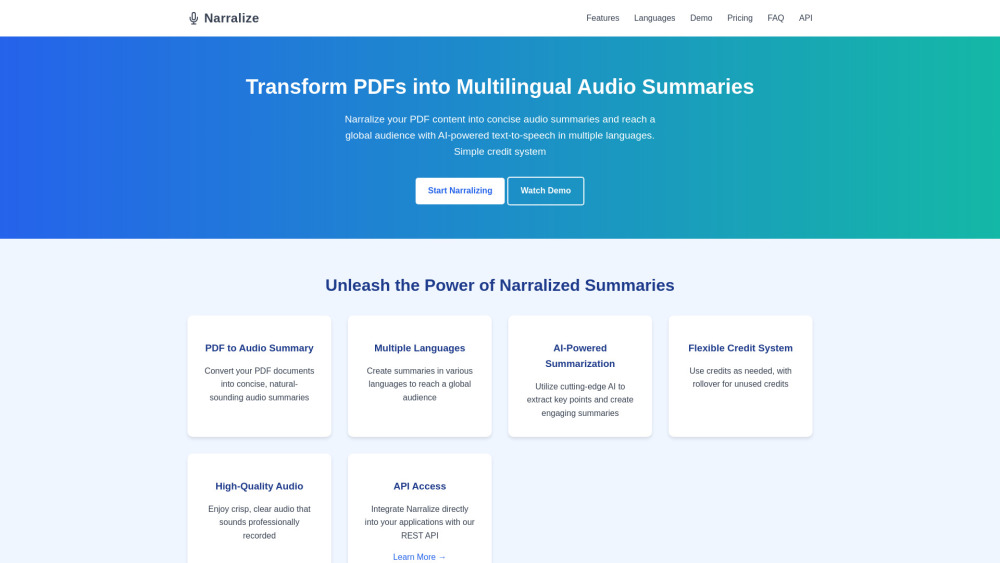
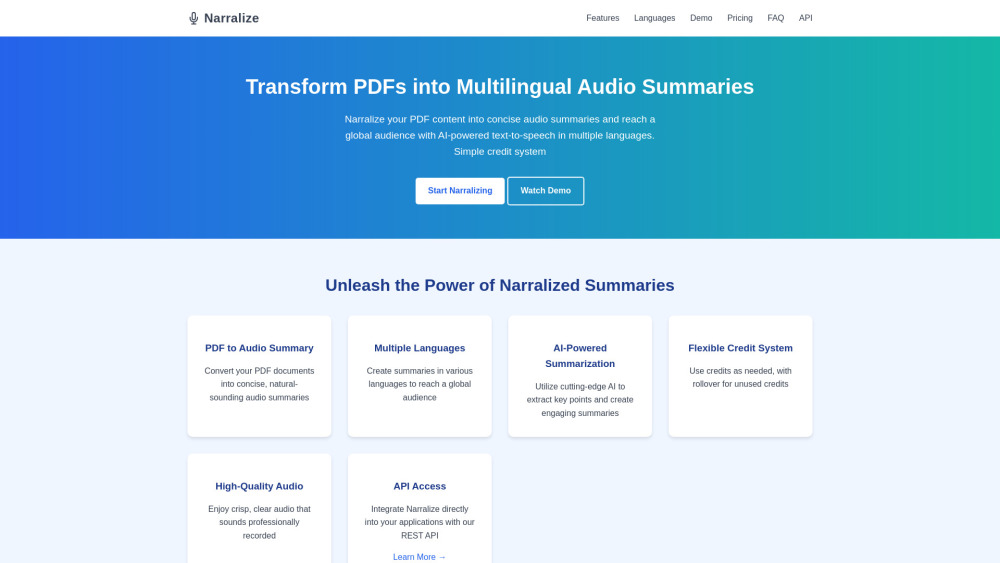
Narralize converts PDFs into multilingual audio summaries using AI.

Chrome extension for quick access to paper summaries and Q&A.